Skip to content

Understanding SSID and Locating it on Desktop and Mobile Devices

Photo by Misha Feshchak / Unsplash

Table of Contents

SSID, which stands for Service Set Identifier, is a unique identifier assigned to a wireless network. It acts as the network's name and allows devices to connect to the correct network when multiple networks are available in the vicinity. Finding the SSID on both desktop and mobile devices is a straightforward process.

On Desktop:

  1. Windows: On a Windows computer, you can locate the SSID by clicking on the Wi-Fi icon in the system tray. A list of available networks will appear, and the SSID of the connected network will be displayed alongside its name.
  2. macOS: On a macOS device, click on the Wi-Fi icon in the menu bar. A drop-down menu will show the available networks, with the SSID of the connected network displayed at the top of the list.

On Mobile:

  1. Android: Open the Settings app on your Android device and navigate to the Wi-Fi settings. You'll see a list of available networks, and the SSID of the connected network will be displayed next to its name.
  2. iOS: Open the Settings app on your iPhone or iPad and go to the Wi-Fi settings. A list of available networks will be shown, with the SSID of the connected network listed next to its name.

It's important to note that the SSID is case-sensitive, so ensure you enter it correctly when connecting to a specific network. Additionally, some routers allow you to customize the SSID, so the network name may differ from the default or generic name assigned by the manufacturer.

Knowing the SSID is useful when troubleshooting network connectivity issues or when connecting to a specific network among several options.
Latest

Private Browsing vs VPN: What Actually Changes

Private Browsing vs VPN: What Actually Changes

Private browsing modes and VPNs are often mentioned together as privacy tools, but they operate in very different ways and protect against different types of visibility. Many users assume that opening a private or incognito window hides activity from websites, ISPs, or employers in the same way a VPN does.

Members Public
Why Some Websites Block VPN Users

Why Some Websites Block VPN Users

Many users are surprised when a website refuses to load, shows an error message, or limits functionality simply because a VPN is enabled. This often leads to the assumption that VPNs are being “banned” or that websites are hostile to privacy tools. In reality, websites block VPN traffic for practical

Members Public
DNS Explained: Why Changing DNS Sometimes Works

DNS Explained: Why Changing DNS Sometimes Works

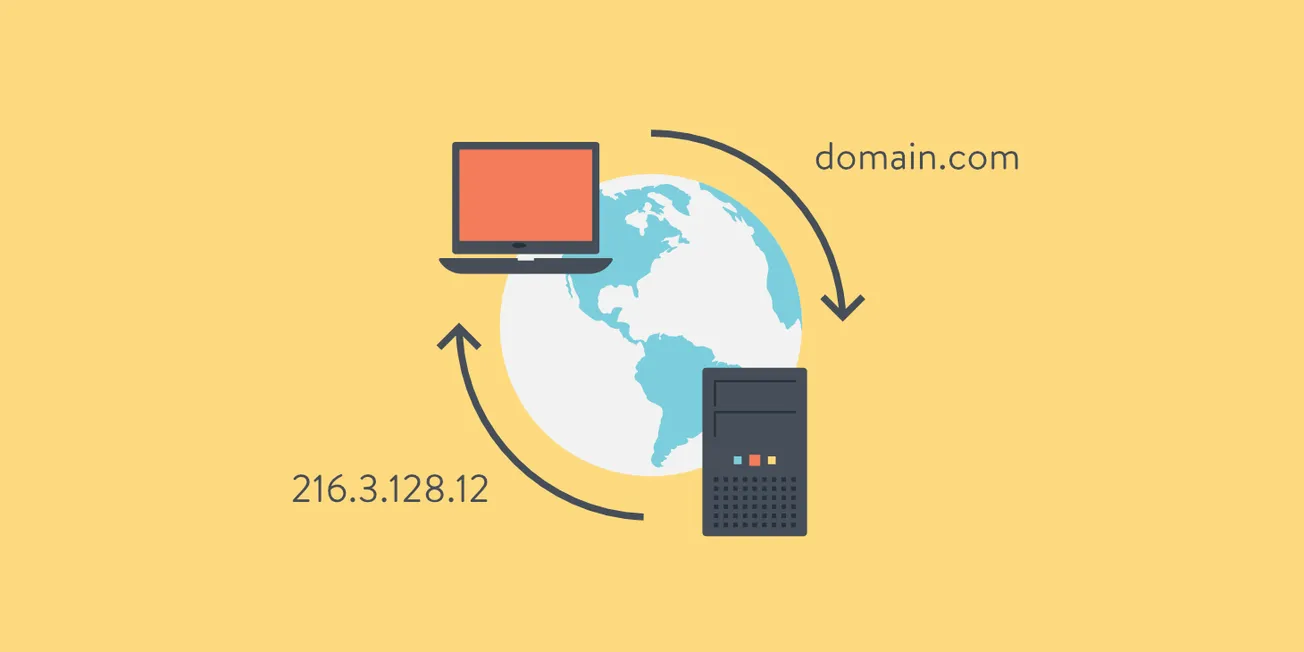
When a website fails to load, one of the most common suggestions online is to “change your DNS.” Sometimes this fixes the problem instantly. Other times it does nothing at all. The reason for this inconsistency is simple: DNS only controls one part of how internet access works. This article

Members Public
Can Your ISP See What You Do Online?

Can Your ISP See What You Do Online?

A common concern for internet users is whether their internet service provider can see what they do online. The short answer is that it depends on how you connect and what tools you use. ISPs sit at a critical point in the connection between your device and the wider internet.

Members Public