
Table of Contents
A VPN (Virtual Private Network) enhances online security, privacy, and accessibility. Whether you want to secure your connection, access geo-restricted content, or protect sensitive data, setting up a VPN on all your devices is essential.
This guide covers:
- How to set up a VPN on Windows, Mac, iOS, and Android
- How to configure a VPN on Smart TVs, Firestick, and gaming consoles
- Setting up a VPN on a router for whole-home protection
- Troubleshooting VPN setup issues
- FAQs about VPN installation
How to Set Up a VPN on Windows
Most premium VPN providers, such as NordVPN, offer dedicated apps for Windows, making setup quick and easy.
Step-by-Step Guide:
- Sign up for a VPN provider – NordVPN is recommended.
- Download the VPN client – Visit the official VPN website and download the Windows app.
- Install the software – Open the installer and follow the instructions.
- Log in – Enter your credentials.
- Connect to a server – Choose a server in the country where you want to access content or for better security.
How to Set Up a VPN on Mac
Apple devices prioritize security, but a VPN adds an extra layer of protection.
Method 1: Using a VPN App
- Sign up and download the Mac VPN app from a trusted provider.
- Install and open the application.
- Log in and select a server.
- Enable the VPN connection and browse securely.
Method 2: Manual Setup via Mac's Built-In VPN Settings
- Go to System Preferences > Network.
- Click the "+" button to add a VPN connection.
- Select VPN Type > L2TP over IPSec.
- Enter the server address (provided by your VPN provider).
- Enter your VPN username and password.
- Click "Connect" to enable the VPN.
How to Set Up a VPN on iOS (iPhone & iPad)
VPNs enhance privacy on mobile devices, especially when using public Wi-Fi.
Using a VPN App (Recommended Method)
- Download a VPN app from the App Store.
- Log in and allow VPN permissions when prompted.
- Tap "Connect" to start using the VPN.
Manual Configuration (L2TP/IPSec Setup)
- Go to Settings > General > VPN.
- Select "Add VPN Configuration".
- Choose L2TP/IPSec and enter the server details from your VPN provider.
- Enable the VPN manually when needed.
How to Set Up a VPN on Android
Using a VPN App (Easiest Method)
- Download a VPN app from the Google Play Store.
- Open the app and log in.
- Tap "Connect" to activate the VPN.
Manual VPN Setup on Android
- Go to Settings > Network & Internet > VPN.
- Tap "Add VPN".
- Enter the VPN server details.
- Save and connect manually when needed.
How to Set Up a VPN on Smart TVs (Android TV, Firestick, Apple TV)
Android TV & Firestick
- Search for your VPN app in the app store (e.g., NordVPN).
- Install and log in.
- Connect to a VPN server and start streaming securely.
Apple TV & Non-VPN-Compatible Smart TVs
- Use a VPN on a router (see next section).
- Use Smart DNS (offered by most VPN providers).
How to Set Up a VPN on a Router
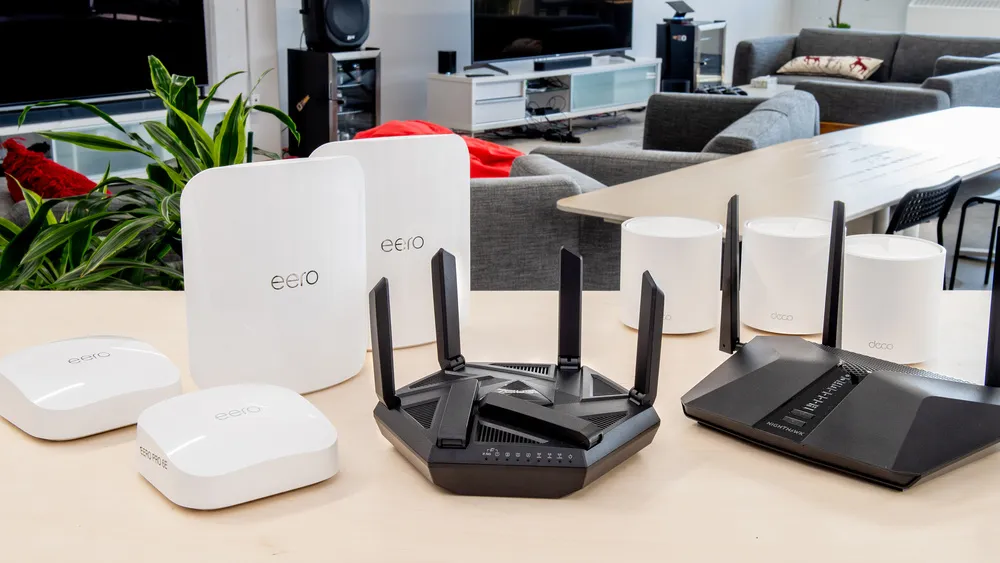
A VPN on a router protects all connected devices.
Step-by-Step Setup:
- Check router compatibility – Not all routers support VPNs.
- Download VPN firmware – Go to NordVPN’s router setup page.
- Log into your router – Typically found at 192.168.1.1 in a web browser.
- Upload VPN configuration files.
- Save settings and reboot the router.
Now, all devices on your network will use the VPN.
Troubleshooting VPN Setup Issues
- VPN not connecting? Try a different protocol (OpenVPN, WireGuard, or IKEv2).
- VPN slowing down internet? Connect to a closer server or use a faster protocol like NordLynx.
- Streaming issues? Switch servers or enable obfuscated mode.
- Can’t install on a router? Use Smart DNS instead.
For advanced troubleshooting, refer to NordVPN’s Help Center.
FAQs About VPN Setup
1. Can I use a free VPN on my device?
Free VPNs are unreliable for security and streaming. A premium VPN like NordVPN is recommended.
2. Does a VPN work on all devices?
Yes, most VPNs support Windows, Mac, Android, iOS, and routers.
3. Can I use one VPN subscription on multiple devices?
Yes, NordVPN allows up to 6 simultaneous connections.
4. How do I know my VPN is working?
Check your IP address here before and after connecting.
Final Thoughts – Best VPN for Easy Setup
For fast and secure VPN setup, NordVPN is the best option.
Get NordVPN here and secure all your devices today.

)